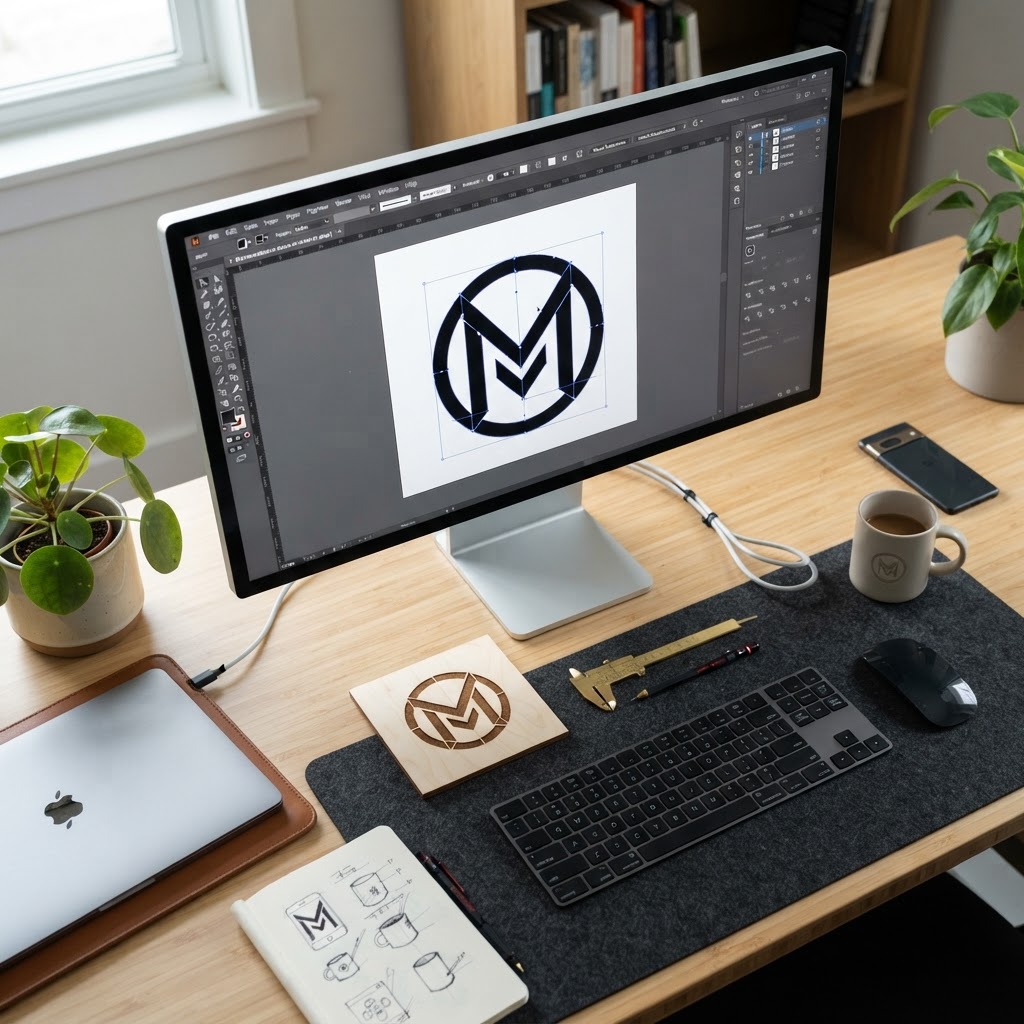
How to Prep Your Logo File for Laser Engraving (Without Hiring a Designer)
Need this made for your team?
Send your artwork or idea and we will come back with a price in one business day. Bulk pricing available.
Why Your Logo Probably Needs a Little Help Before It Hits the Laser
You have finally decided to put your company logo on a set of high-end tumblers or maybe a custom metal sign for your office here in New Braunfels. You have the file on your computer. You think it looks perfect. But then you send it over to us at Perfect Etch, and we have to be the bearer of bad news. We tell you the file is grainy or the lines are blurry, and that it just won't engrave the way you want. It is a frustrating moment for everyone involved.
Here is the thing about laser engraving. Unlike a color printer that can smudge a little blurriness into a nice image, a laser is a binary machine. It is either on or off. It is burning a precise path across metal. If your file has fuzzy edges or hidden gray pixels, the laser gets confused. It tries to interpret those gray areas, and the result is usually a jagged, messy engraving that does not look like the professional brand you have built. You do not need to be a graphic designer to fix this, but you do need to understand the difference between a picture and a path.
The Secret Language of Vector Files
The single most important concept you need to grasp is the difference between a raster file and a vector file. Most people have files ending in JPG, PNG, or GIF. Those are raster files. Think of them like a mosaic made of thousands of tiny colored tiles called pixels. If you zoom in close on a JPG, you will see those little squares. If you try to blow that image up to fit on a large metal sign, the computer has to guess where the new pixels go, which is why your logo looks like a blurry mess.
Laser engraving requires a vector file. A vector file does not use pixels. Instead, it uses math. It stores your logo as a series of points, lines, and curves. Because it is math, you can stretch your logo from the size of a postage stamp to the size of a billboard, and the edges will stay perfectly sharp and crisp. When we load a vector file into our machines, the laser follows the lines perfectly. If you are wondering which file format you have, look at the end of the filename. You want to see something like .AI, .EPS, .SVG, or sometimes a high-quality .PDF. If your file ends in .JPG or .PNG, it is technically not a vector file.
Can You Convert It Yourself
Look, I know what you are thinking. Can I just run my logo through one of those free online converters and be done with it? Honestly, you can try, but it rarely works the way you hope. Most of those free tools just trace the pixels and create a mess of thousands of tiny, disconnected line segments. Our laser software hates that. It makes the machine stutter and pause while it tries to calculate a path through garbage data. If you have a simple logo with solid colors and clear shapes, you might get lucky, but for most professional brands, those converters just do not cut it.
If you are determined to avoid hiring a pro, there are a few manual ways to get your artwork ready. If you have a basic understanding of software like Adobe Illustrator or the free program Inkscape, you can use a tool called the pen tool to trace your logo manually. It sounds tedious, and it is, but it produces the cleanest possible results. You are essentially drawing the paths that the laser will follow. If your logo is just text, don't just send us the font file. Convert your text to outlines or paths within your software. This locks the letters in place so the laser doesn't ask for a font file we might not have on our system.
Cleaning Up the Details
Even if you have a vector file, you might have hidden issues that will ruin a metal sign. Take a look at your logo and check for overlapping lines. Sometimes, when a designer creates a logo, they layer shapes on top of each other. If those lines are not merged into a single, clean shape, the laser might burn the same spot twice. That can cause uneven heating or messy edges on stainless steel or powder-coated tumblers.
You should also watch out for line thickness. If you have extremely tiny text or very thin lines, the laser might actually burn them away entirely. It is a good rule of thumb to keep your lines at least a certain thickness so they actually show up on the material. If your logo has a lot of intricate detail that is smaller than the tip of a pencil, we might need to simplify it. When you are looking at your file, try to imagine it in solid black and white. If there is shading or a gradient, that is not going to translate to a laser. You need to simplify those elements into solid blocks of color or clear outlines.
Getting It Ready for the Shop Floor
Once you have your vector file, do a final check. Make sure there is no random floating junk in the corners of the file. Sometimes you will have a stray dot or a line that you didn't see while working on your computer, but the laser will absolutely pick it up. We have seen more than one project get a little stray mark right in the middle of a beautiful engraving because a stray path was left in the corner of the file.
If you are dealing with metal part marking, remember that precision is everything. You want your serial numbers and your branding to be legible for the life of the product. Putting in the work to get a clean, scalable vector file means we can set the laser to the perfect speed and power settings for your specific material. That leads to a deep, permanent mark that looks sharp and professional. It is the difference between a hobby project and something that looks like it came off a high-end production line.
When you are ready to move forward, just reach out to us here at the shop. You can send over whatever files you have, and we can take a look. We are always happy to tell you if your artwork is ready to go or if it needs a little bit of extra polishing before we fire up the machines. We love helping our neighbors in the New Braunfels area get their custom projects dialed in. If you have questions about your specific logo or need advice on what material will look best for your signs or drinkware, just give us a call or stop by the shop. We are here to help you get the best result possible for your brand.
Tell us about your project
Share the basics and we will come back with pricing, options and a timeline. No obligation.